Pages

Showing posts with label Blogger. Show all posts

Monday, 10 February 2025

Unable to sign in to make blog comments

I ran into an interesting problem last year: not being able to log in as myself on my own website to reply to commenters on blog posts on the Brave browser. I would go to enter a reply to a commenter, and instead of being automatically logged into my own blogger account (as I had to be in order to approve comments), I was suddenly "anonymous". When I tried to log in using my Google account, I was unable to - the entire process of logging in did not work - and there was no captcha. I would get taken to the top of the page again, and, when I went down to the reply link below the comment, I would have a message: "Unable to sign in to comment. Please check your browser configurations to allow sign-in. Learn more. You can still comment anonymously or with name and URL"

Having run my own blog for years, and this having worked seamlessly for years, I was quite surprised, and figured it was something that Google had changed. So I tried Firefox, and ran into the same barrier; I didn't bother trying Edge. However, I was still able to reply to commenters using the Chrome browser - I was still logged in with my blogger account there - so I replied to my commenters using that browser, while writing my posts and approving comments in Brave.

Until Chrome stopped automatically carrying over my log in as well this year.

OK. So NOW it was time to do something about this: it had gone from a niggle to a problem. I was (a) not logged in to Blogger, and (b) could not log in using my Google account. So what I tried was:

  • Blogger Help (Evans, 2019; Satu, 2019), which suggested clearing out all cookies. I did that, shut down, and restarted my PC. No change: still no log in.
  • Reddit (somuchsong, 2024), which suggested third party cookies should be enabled. I did that, shut down, restarted. No change: still no log in.
  • Reddit (somuchsong, 2024), also suggested that "enhanced tracking protection" might be the problem, so disabling it might work. I did that, shut down, restarted. No change: still no log in.
  • Blogger Help (D'Angelo, 2025; Evans, 2019) and Reddit (somuchsong, 2024), suggested that third party apps were causing problems. D'Angelo (2025) pointed the reader to a blogger blog post by Auster (2023) which talked about many things, including whitelisting sites. So I added the URLs of my blog, and blogger to the sites ignored by tracking protection. Shut down, restarted. No change.
  • Coming back to this idea of third party apps causing problems, I re-read the three most useful posts (Auster, 2023; Evans, 2019; somuchsong, 2024), and I decided to search the Chome settings for 'party' and white list the URLs of my website and blogger everywhere. Shut down, restarted. No change.
  • Sigh. Then my eye caught a line in the somuchsong (2024) question, asking them if they were using Privacy Badger. Damn: I use Privacy Badger. I reloaded the blog page in Chrome, and saw that Privacy Badger immediately flagged four cookies and blocked them. I slid the slider across to green for my site. Shut down, restarted. I could now comment.
  • Then I went to Brave, and turned off scanning on my website. Now I can write posts, comment and reply all in Brave.

A bit of a palaver, but not really a Google issue as this is third party app blocking. BUT. It shows that the Blogger platform is getting out of step with the rest of the internet with tracking and cookies. If Google are to keep Blogger going, there seems to be a need for an upgrade.

Something to watch out for.


Sam

References:

Auster, A. (2023, December 20). Blogger comments and engagement. Too Clever By Half. https://too-clever-by-half.blogspot.com/2023/12/blogger-comments-and-engagement.html

D'Angelo, I. (2025, January 3). Logged into Blogger, can't reply to comments on my blog via blogspot. Blogger Help. https://support.google.com/blogger/thread/316567484/logged-into-blogger-can-t-reply-to-comments-on-my-blog-via-blogspot?hl=en

Evans, J. (2019, April 12). Can't Leave Comments. Blogger Help. https://support.google.com/blogger/thread/4035725/can-t-leave-comments?hl=en

Satu. (2019, March 30). I can't answer the comments. Where's the problem?. Blogger Help. https://support.google.com/blogger/thread/3263553/i-can-t-answer-the-comments-where-s-the-problem?hl=en

somuchsong. (2024). Blogger: Can't comment on my own blog (or any blog) with Google account. Reddit r/blogspot. https://www.reddit.com/r/blogspot/comments/17yi6cb/blogger_cant_comment_on_my_own_blog_or_any_blog/

read more "Unable to sign in to make blog comments"

Friday, 17 January 2025

Two millennia of posts

As I was scheduling articles on my blog recently, I noticed that I was creeping up to the grand total of 2000 posts. And the day of my two thousandth post is today. Happy second millennium post-day to my blog!

At an average of 750 words per post, that's another three quarters of a million words now in my blog in addition to the first million achieved in 2018 (here). Again, I had not considered that writing my three posts each week would ever reach close to two million words; writing which has been completed largely for sharing learning with others.

This milestone has again caused me to reflect on what I have done in the past, and where this blog is heading. The focus has largely shifted from business to career development; a topic which was once my secondary subject: my side gig. I now also have twenty five years of writing for clients, a marker which was met in December last year. 

Again, my client base has changed. Originally I wrote tips for small business owners; then - as a member of the academic community - I wrote tips for business students; now I write largely for career development students and practitioners. I am still solving client problems, but now as a lecturer and researcher.

Interesting how life continues to evolve.


Sam

read more "Two millennia of posts"

Friday, 21 April 2023

How to find and replace in a blogger post

My blog was created on the venerable Google platform of Blogger. No problem with that, but the world has moved on in the past twenty years, and some things have always been a bit "you can't get there from here"... although ardent Blogger fans have often created code to help those less able users to do most things we need to do. But there is one small thing that I keep returning to: how to do a find and replace within a blog post.

You see, the blank spaces at the end of a paragraph in html code is often replaced with the " " character, or non-breaking space. This is usually a very handy trick that we use between elements which we don't want to line-break on, such as $5: we would enter this as "$ 5" to ensure that this all stayed together. However, when this non-breaking line space happens automatically at a paragraph end, the word wrapping often happens on the previous word, leaving line orphans in odd places.

Also, at the beginning of a post, if my first paragraph is too short, in my 30 word blog roll summary it looks like I have made a mistake and not left a trailing space after a full stop. So I at least want my first paragraph or two to have paragraph end trailing spaces.

So I tend to get rid of the auto-magically created " "s, or at least code them out as I go. I can do a "find" - easy peasy - simply Ctrl & F when in html blogger view, and I get a wee box at the top of the page that I can enter my find item into. However, "find and replace" function is not an easy find. Thanks to chiliNUT (2021) I can Ctrl, Shift & F, and I get a box for the replacement text (in the same place as the find box), then I need to hit enter to get the second box in the same place, where I can enter my replacement text. Note that if you are using this that there are not TWO boxes: one for find, and one for replace. This is a single box, activated by a keyboard 'Enter'.

There is an option to copy the html out into Notepad or Word, edit there, and return it, but this is a bit of a fag to do. I use the Shift & Ctrl & F option mostly, but in the past I used Notepad a lot (chiliNUT, 2021).

However, there is a third way to replace ALL the code or text in your Blogger blog. I have used this for broken links, and to harmonise phrasing or keywords in the past. Created by Adam Lewis, we go to his site here, and REALLY, REALLY think carefully through the consequences of doing a replace all, because we cannot easily undo it. I would recommend backing up the site content and design before doing this just in case there are unexpected outcomes!

I hope this helps someone :-D


Sam

References:

chiliNUT. (10 May 2021). How to find all and replace all on blogspot html editor?. StackOverflow. https://stackoverflow.com/questions/67465638/how-to-find-all-and-replace-all-on-blogspot-html-editor

Lewis, A. W. (2012). Blogger Find & Replace. https://www.adamwlewis.com/articles/blogger-find-replace?happy=1

read more "How to find and replace in a blogger post"

Monday, 25 January 2021

Searching blogger for two labels at once

I discovered an interesting trick recently. While I always knew we could search Blogger posts for labels, using:

www.[site name]/search/label/[label name]

I didn't know how utterly, utterly easy it was to search two labels at once. It is as simple as:

www.[site name]/search/label/[label name 1]+[label name 2]

If there is a space in my label terms, I just need to put a '%20' between the words as a placeholder for the space. So, for example, if I want to search my site for both 'data collection' and 'interview technique' labels at once, the URL would be formulated as follows:

http://www.samyoung.co.nz/search/label/data%20collection+interview%20technique

Too easy.


Sam

read more "Searching blogger for two labels at once"

Friday, 4 December 2020

Forward dating Blogger posts

I have an interesting problem with the new version of Blogger. I permanently show two blog posts at the top of my blog roll. At the top is my "Welcome" post, and in second place is an advice to potential contributors.

In the old blogger, to keep those posts at the top of my blog roll, I would simply publish each article, then re-date them a year ahead so they always show at the top. However, Google has just moved everyone to an updated version of Blogger, and the forward dating function appears to no longer be available. It seems that posts will only appear after the scheduled date.

While I tried in both Firefox and Chrome, I was unable to date a post ahead and save it. I could set the date, but when I tried to save, it gave me a message "The publish date of an already published post cannot be set in the future". <sigh>
This meant that come 31 December this year, I would be unable to keep my two 'pinned' posts at the top of my blog roll. I posted on the Google Community, asking for a fix, but have not yet had an answer.

In the meantime, I went looking for a solution, or a work around.

And I found a work around from 9JAEDUBLOG (3 October 2020), although I don't know how long the link to the legacy format will last. We can access the 'legacy' Blogger by copying our blogger ID into the following black text in this URL:
https://www.blogger.com/blogger.g?blogID=xxxxxxxxxxxxxxxx&useLegacyBlogger=true
Simply replace the red x's with our blogID. Save the shortcut, and we can use the legacy view once more :-)


Sam
read more "Forward dating Blogger posts"

Friday, 13 November 2020

New Blogger and non-breaking spaces

It is interesting, isn't it, how difficult it is to get used to a new system. Google's Blogger website structure has just been updated, and all we users are rattling around like ants in a can, complaining and trying to make the new system work like the old one.

And asking questions about why the new system doesn't work like the old one. And trying to post questions about why the new system doesn't work like the old one. And asking to get the legacy viewer back so we can pretend that we still have the old one. We don't like change.

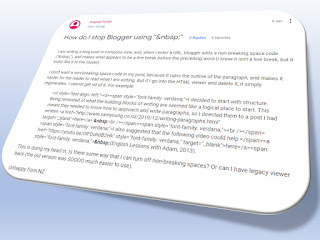
But every now and again we strike a problem in a new system which may actually be a bug. I had an interesting one recently. Blogger kept putting in what is known as a 'non-breaking space' which meant that my paragraphs broke in funny places. You can only see this is the html view, where a non-breaking space instruction looks like this:

&nbsp;

It usually occurred when I inserted a URL. So instead of a paragraph reading properly, it would break before the URL, like this:

James went to the gym on Mondays and Fridays

(https://www.google.co.nz/)

If I deleted the "&nbsp;", it would just appear again. It was doing my head in. Once I found out how to ask for help from the Google Community (another story, here), I asked for help to get rid of the recurring "&nbsp;" code.

Having worked my way through everything, I proudly looked at my post on the Google Community. It was then that I realised that there were two pieces of tht non-breaking space code bracketing the URL. Oops. I had only got rid of one: of course Blogger was thinking I was useless, and adding the open code element back in. Like book-ends, there are always two.

I got rid of both pieces and the problem went away... and I had a warm wash of shame for not having thought of that myself.


Sam

read more "New Blogger and non-breaking spaces"

Wednesday, 11 November 2020

Asking the Google Community

Google's Blogger website platform has at long last been updated, and we users are struggling with the changes. Luckily the users have an expert group - the Google Community - who collectively provide expert guidance for the questions.

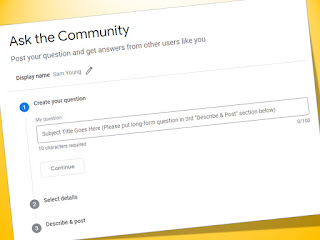
I went around and around recently on the Google Community site, trying to find out how to "Create new" or "Compose" a new post. The interesting thing is that, to find out how to ask the Google Community how to create a post to ask a question, I had to go to Google and post "how to ask a NEW question of the blogger community".

Interesting.

The foremost post which came up was an answer to a spam Google Community post which ended up with an aside explaining how to another user how create a new post. We go to this link here (Google Support, 2020; Google Support, 2019), and fill out the form.

Perhaps a simple link in the header bar of the site had not occurred to anyone.


Sam

References:

read more "Asking the Google Community "

Friday, 13 March 2020

Creating an online platform

Image from The Haze (2020)
I was asked recently how a client could create a website. The question made me think, because really the first question is: "what do we need?"

To try and work out the answer to the first question, we need to ask "what do we want to do with it?". This leads to a larger question "what do we want to achieve?"

Answering these questions in the following order should help us decide exactly what it is that we want to do:
  1. What do we want to achieve from the platform?
  2. What do we want to do with it, and how?
  3. So what is it that we actually need?
We need to consider what platforms might be useful. We may not need a website at all. We may need a blog. There are a few 'best' lists here:
  • Top 10 websites (here)
  • Top 5 websites (here)
  • Top 5 blogs (here)
I created my own website using a Blogger Blog base. What I did was to take this course on Udemy, by Andrew Pyle, and to convert my existing blog into a website. I did this because I already had a static website and a blogger blog and wanted to create a website with a blog in it... so it was an easy transition. For the course, you have to (a) already own your own domain name (eg., www.samyoung.co.nz), and (b) have an internet provider who can provide and transfer your domain information at the outset. From there it works perfectly: and this has met my needs, simple as they are, for seven years.

To create a blogger blog, Google has great advice here.

Otherwise we may need a Facebook page. Or a twitter account. Or an Instagram account. We may not need our own site at all.


Sam

References:
read more "Creating an online platform"

Monday, 20 January 2020

Adding video to Blogger blog posts

There is a really easy way to add YouTube video to blogger blog posts.

As we are writing our blog post, we can simply click on the film clapboard icon (Insert a video) on the toolbar. A dialogue box will appear, where we chose where we want to link our video from: our YouTube uploads, YouTube, or a drag and drop from our device.

Key enter. Done.

Too easy.

Sam

read more "Adding video to Blogger blog posts"

Wednesday, 6 November 2019

Using Google Photos images in blog posts... doesn't work

If, like me, you use Google photos to store your images, you may have wondered how to send, or to reuse photos elsewhere online.

It has taken me some time to get around to investigating how to do this: I assumed there would be something obvious. However, it is not obvious.

Initially I thought it would be a simple matter of opening the image that we want to link in Google photos, so that it fills the screen (as illustrated). Right click on the image, and, from the right-click pop-up menu, we select "Copy image address". Then I thought we would be able to go to wherever we want to use the image and Ctrl & V to paste the URL: in Facebook, LinkedIn ...or wherever.

I thought that then all we would have to do is to include the image in a blog post would be - in the blog edit mode to click on the image icon, and under the Add images dialogue box, select "From a URL", and key Ctrl & V to paste the URL into the field provided.

But no. While WE can see those images, others can't. Then I thought it would be a simple matter of creating a shared album. But, while you can create an album, add images and set the album to be shared, that doesn't seem to work either. You seem to have to add another google account user to share the album, then use a shared link for each individual image, and, taking the link that would have been emailed to the 'other' google user, use that link to share each image in our blog in the "From a URL" field.

The sharing of each individual image palaver - and the attendant logging into a second google account to get the 'other' gmail link - is probably more time consuming than downloading the google image to our PC, and re-uploading it to the blog.

If someone else knows how to make google photos public and easily linkable in a blog, let me know! It seems ridiculous not to be able to link within the cloud.

:-(


Sam
read more "Using Google Photos images in blog posts... doesn't work"

Monday, 14 January 2019

Rotating Blogger images

Recently I was writing up some family news for another wee blog that I have, when I realised that some of my images were loading upside down, or rotated by 90 degrees. Many images are automatically rotated to their correct orientation, but some were persistently skew-whiff.

In the past I have simply gone out, rotated the image, and re-uploaded.

And then I thought: surely there is a way to code images so they rotate within the post... so I googled it. Sure enough, there was a way, by the simple addition of "-r90", "-r180", or "r-270" to the image string in the html window. This little instruction gets inserted with the display size, so your text might read:

https://4.bp.blogspot.com/Z...As/s320-r90/Name_of_image.jpg

I had not expected it to be so utterly easy. But it was.

NB: you may need to also tweak the display size, if it is specified in the string


Sam
read more "Rotating Blogger images"

Friday, 2 November 2018

I write, therefore I am

Three years ago I decided that my blog strategy would be to write posts as I came by the inspiration, but to schedule those posts so that they were released three times a week on a Monday, Wednesday and Friday, regardless of when I wrote them. This means that when I get busy, I don’t have to be frantically writing on top of everything else.

When I write - over summer and in the mid-winter break, usually - I draw from an idea bank which is a mix of partially constructed posts which I have saved as a draft post (with a title, a few guiding words and some links) in my blog management system, or - especially if I am away - in 750words. I have blogged about 750words before (read those posts here), which I use to help me develop my writing habit a little bit at a time, every day.

At the beginning of the new academic year, I may have three months of posts scheduled and circling in holding pattern. While I do write throughout the year, I can't keep up with posts going live, so scheduled posts steadily deplete. By the start of the next summer break I may only have one or two posts left, and need to focus on completing drafts and writing up banked ideas. While I may at times have been writing posts one behind the next one scheduled, I have kept to my current three-posts-a-week pattern since May of 2015.

I write for myself. This means that my blog lacks focus, as I write on a broad variety of topics. This is not the normal blogging pattern, and - as all the experts say - is not a strategy designed for fame and fortune through reaching and tuning into to a particular audience.

Writing is a process that I enjoy. I am a knowledge magpie, and will sometimes simply write to clarify my own thoughts. Some posts are simply 'notes to self' or a banked idea for how to fix something that has broken. Some posts are client-informative; some are student-informative. I write on leadership, on self-leadership, and on learning... and on anything which takes my fancy, really.

I write, and send my writing into the ether. And sometimes people comment to say they like what I have written, which is nice.


Sam

read more "I write, therefore I am"

Monday, 6 August 2018

A millennium of posts

As I was scheduling articles on my blog recently, I noticed that I was creeping up to the grand total of 1000 posts. And that day of the thousandth post is today. Happy millennium post-day to my blog!

At an average of 1000 words per post, that's a million words in my blog. I had never thought about whether I could - or would - write a million words, let alone have those words in 1000 posts over almost twenty years. And unlike my writing on 750words.com, which passed a million words last year, this writing has been largely for others, not for myself.

This event has made me think about the past, and where this has come from. This blog will represent, in December 2019, twenty years of articles for client newsletters. I am sure that the coming eighteen months will go by very quickly, and before I know it, I will be writing a piece marking two decades of writing for clients.

However, this event has also made me think about the future. My client base has changed. Where I once wrote solely on tips for small business owners, I am now writing tips as a member of an academic community. Still solving client problems, but now as a consultant/researcher.

Interesting how life evolves.


Sam
read more "A millennium of posts"

Friday, 30 March 2018

Blogger keyword search made simple

I discovered by accident today how I can limit a Blogger blog search to just the keywords. It has taken me a number of years to sort this out, of course, and I stumbled upon it entirely by accident.

The accident was in trying to provide a list of all my live blog posts which contained a particular keyword. I tried a few things like "label: [keyword]" and "tag: [keyword]" in the search box, but this didn't work. I think it only showed up items which contained the keyword AND the same in the text itself. Not necessarily a win.

However, in one of the posts which came up in one of my attempts, I clicked the keyword in the keyword list below that post. This returned me a search only on that keyword. Then I sorted by date, to get the list in date order. Yay! I had it!

But better still, I noticed that my blog's URL now had an extra stage: /label/[keyword].

So a keyword search is even simpler than that. All we have to do is to key "/label/[keyword]" onto the end of our blog address, and lo! We will have our keyword search anytime we want it. If this is a keyword phrase, we also key the gap between the words.

Who knew it would be so easy? I have a new shiny Blogger tool!


Sam
read more "Blogger keyword search made simple"

Friday, 26 May 2017

Creating Jump Links in Blogger

Crikey. You would think it would be a simple thing to work out how to create an anchor jump link on a single l-o-n-g Blogger page or blog post, so users could skip to the bit that was the most relevant to them. But no. It actually took me quite a while to find out how to do it.

I am not a techno-whizz at coding. I muddle through by trial and error, and always have a crack at coding in a Word document, where each change gets saved as a new version, so I can roll back when everything goes pear-shaped (as it often does. Version control rules!).

However, when I wanted to create some single page jump links, I thought it would be a relatively simple thing to do a google search and get an answer. However, I think I had five failed attempts before I finally found the 'right' way to get this working.

Luckily I was using Word so that I could roll back the changes I had made each time I tried and failed to get this working.

And, because it was so hard to get code that would actually work the way it was supposed to on a Blogger blog, I thought I would repeat it here for anyone else who was looking for the same thing.

So you need four things before you start:
  1. Know where you want to locate your jump links (ie, your table of contents)
  2. Choose a simple one word name for that particular jump link
  3. Know where the headings are that you want to link to
  4. Have working code for your heading.


What was proposed for the jump link itself was:
<a href="#Yellow">Light Yellow: Report/article FAQs</a>
What was proposed for the heading to be linked to was:
<a name="Yellow">Report/article FAQs</a>
What the jump link ended up looking like was (because it was a bullet point, and I wanted a particular phrase, and there was background highlighter, and there was a specified font):

<li><span quot="" sans-serif="" verdana=""><span style="background-color: #ffff99;"><a href="#Yellow"><a href="#Yellow">Light Yellow: Report/article FAQs</a></a></span></span></li>

And what the heading looked like (because a particular font, heading and background highlighter format) was:

<a name="Yellow"><span quot="" sans-serif="" verdana=""><span style="background-color: #ffff99;">Report/article FAQs</a></span></span></h3>

Hope that helps you work a solution out for yourself!


Sam
read more "Creating Jump Links in Blogger"